CSS You May Not Know — Takeaways from Reading the CSS Specification
This article is based on the Chinese translation of the CSS 2.1 specification.
Tests were performed with the Chrome 70 browser.
Preface
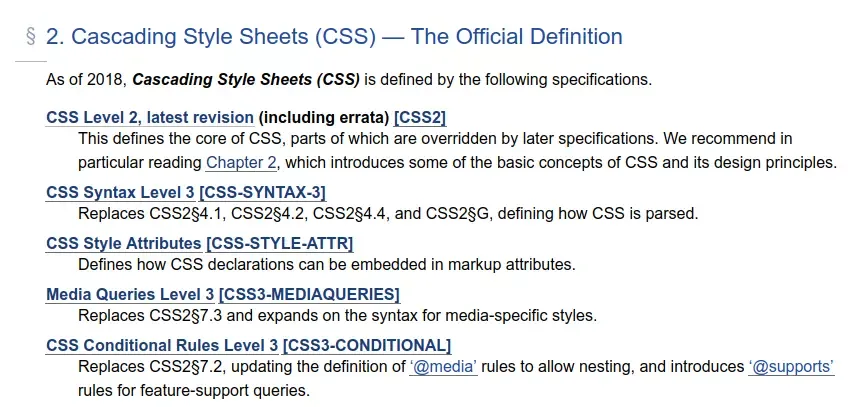
Some might say: it is almost 2019, so why still read the CSS2.1 specification? For one thing, the latest CSS (core) specification today is CSS2.2 (the screenshot below is taken from https://www.w3.org/TR/CSS/); for another, CSS2.1 has a Chinese edition and does not differ much from the CSS2.2 specification, so out of laziness I ultimately chose to read the CSS2.1 specification.
I remember that during an interview, the interviewer said, “Your JavaScript is much better than most people’s, but your CSS still needs strengthening.” After graduating this June, I officially became a frontend engineer, and reading the CSS specification therefore made it onto my TODO list for this year.
It took two months of scattered time here and there, and last week I finally finished the reading, and my understanding of CSS became a little more systematic and well-rounded. During my reading, I came across some small bits of knowledge that are easy to overlook but might come in handy or are interesting in themselves, so I took that as the theme, expanded on it where appropriate, and put together an article to share with you all.
In the time it takes to finish a cup of coffee, let’s go back over the places in the specification that may not easily catch your attention.
Happy reading — feedback welcome.
Keywords, Properties, and Identifiers
Keywords and property names beginning with - or _ are reserved for vendor-specific extensions.
In CSS, identifiers may only contain the characters [a-zA-Z0-9], characters U+00A0 and above in ISO10646, and - and _; they may not start with a digit, with 2 hyphens, or with a hyphen followed by a digit.
This also means that selectors can be written in Chinese (though this is not recommended).
<style>
.中文 {
    color: red;
}
</style>
....
<p class="中文">这是一段中文选择器文本。</p>
At this point, the text inside the <p> tag will turn red.
@import
User agents must ignore all @import rules that occur inside a block, or after any statement that cannot be ignored other than @charset and @import rules.
This also means that @import rules must come before all rules other than @charset and other @import rules.
@import "subs.css"
h1 { color: blue; }
@import "list.css"
In the code above, the second @import statement is invalid, and the parser will ignore that rule.
In addition, an @import rule can carry a media query type, indicating that the style sheet is imported only when a certain media type is matched.
@import "landscape.css" screen and (orientation:landscape)Encoding and @charset
When a style sheet is embedded in another document, such as in a style element or a style attribute in HTML, the style sheet shares the character encoding of the entire document.
If a style sheet lives in a standalone file, its character encoding is determined in the following order (from highest priority to lowest):
- The
charestparameter of theContent-typefield in the HTTP protocol - The BOM encoding of the file, or
@charset <link charset="">or other metadata from the linking mechanism- The character set of the importing style sheet or document
- Assume UTF-8
Authors who use an @charset rule must place it at the very beginning of the style sheet, with no characters permitted before it. User agents must ignore any @charset rule that does not appear at the beginning of a style sheet.
The :first-letter Pseudo-element
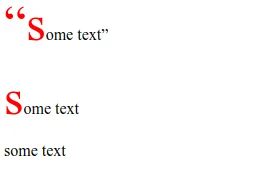
The :first-letter pseudo-element selects the first letter (or digit) of the first line of a block (the first formatted line block), if no other content (such as an image or an inline table) precedes it on that line. The first letter of a table cell or an inline-block element cannot serve as the first letter of its ancestor element.
<style>
.description:first-letter {
    color: white;
}
</style>

<p class="description">“some text”</p>
<p class="description">some text</p>
<p class="description"><img src="" />some text</p>
The actual effect is shown in the figure:
The :before and :after Pseudo-elements
The :before and :after pseudo-elements inherit all inheritable properties from the element in the document tree to which they are attached. Non-inheritable ones take their initial values.
Usage example:
p { color: red; display: block; }
p:before { content: 'T'; }
As in the example above, the :before pseudo-element will be rendered in red. Because the display property is not inherited, it takes its initial value, inline.
Extension: Single and Double Colons for Pseudo-elements
The CSS3 Selectors draft distinguishes pseudo-elements from pseudo-classes (CSS-Selectors Level 4): pseudo-classes still begin with a single quotation mark, while pseudo-elements begin with two. For the :before, :after, :first-line, and :first-letter pseudo-elements that existed in CSS1 and CSS2, user agents must support both their single and double quotation mark forms; for other newly introduced pseudo-classes, user agents will not support the single quotation mark form.
Selectors and the Cascade
In selectors, the case sensitivity of document language element names depends on the document language: for example, in HTML element names are case-insensitive, while in XML element names are case-sensitive.
Cascade Order
Style sheets can have 3 different origins: author, user, and user agent (such as a browser).
To find the value for an element/property combination, the user agent must sort according to the following (steps):
- Find all declarations that apply to the element and the target property under the target media type
- Sort by importance (@important) rules and origin, in order of priority from low to high:
- user agent declarations
- normal user declarations
- normal author declarations
- important author declarations
- important user declarations
- Rules with the same importance and origin are sorted by the specificity of their selectors; the more specific selector overrides the general one. Pseudo-elements and pseudo-classes are counted as normal elements and classes, respectively
- Finally, sort by specified order: if two declarations have the same weight, origin, and specificity, the one specified later takes effect. Declarations in a style sheet imported with
@importare considered to come before all declarations in the style sheet itself
Calculating a Selector’s Specificity
A selector’s specificity (a-b-c-d) is calculated according to the following rules (weights decreasing from a to d):
- If the declaration comes from a
styleattribute rather than a selector style rule, count 1; otherwise 0 (=a) - Count the number of ID attributes in the selector (=b)
- Count the number of other attributes and pseudo-classes in the selector (=c)
- Count the number of element names and pseudo-elements in the selector (=d)
* {} /*a=0, b=0, c=0, d=0*/
li {} /*a=0, b=0, c=0, d=1*/
.description {} /*a=0, b=0, c=1, d=0*/
*[rel=up] {} /*a=0, b=0, c=1, d=0*/
#element {} /*a=0, b=1, c=0, d=0*/
style="" /*a=1, b=0, c=0, d=0*/
That is, although #p123 and [id=p123] select the same thing, the ID selector has higher specificity than the attribute selector.
Addendum
I have seen some blogs that, when discussing the specificity of the cascade, describe the a-b-c-d calculation above using weights of 1000, 100, 10, and 1. This is actually inaccurate, and a simple experiment can disprove the claim.
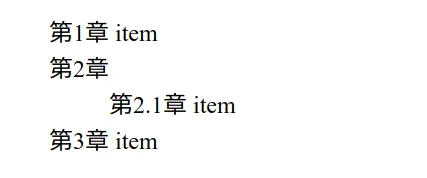
In the example below, we define a div with the class name zero, nest ten levels of div inside it, and give the innermost level the id last. Under the ×10-increment algorithm, the specificity of the class selectors across the eleven nested levels is 110, while using one id gives a specificity of 100, so the background would be black. Under the a-b-c-d algorithm, the specificity of the former is 0-0-11-0 and that of the latter is 0-1-0-0, so the background would be red.
By observing the behavior of eleven chained classes versus one id, we can draw the conclusion.
<style>
  #last {
    background: red;
  }
  .zero .one .two .three .four .five .six .seven .eight .nine .ten {
    background: black;
    height: 100px;
    width: 100%;
  }
</style>
<div class="zero">
  <div class="one">
    <div class="two">
      <div class="three">
        <div class="four">
          <div class="five">
            <div class="six">
              <div class="seven">
                <div class="eight">
                  <div class="nine">
                    <div class="ten" id="last"></div>
                  </div>
                </div>
              </div>
            </div>
          </div>
        </div>
      </div>
    </div>
  </div>
</div>
As shown in the figure, the background is red, so the 1000, 100, 10, 1 calculation is inaccurate.

However, due to implementation issues, there can be a limited number of cases where multiple class selectors have higher priority than a single id. Zhang Xinxu shared a post back in 2012: Interesting: 256 class selectors can take down 1 id selector. The main reason is that when that article was written, some browsers used an 8-bit counter to count the number of class selectors, so once the number of class selectors reached 256, the carry would result in a weight higher than that of an id. Later browsers used higher-bit counters, so in theory a boundary value could still exist, but it would be very hard to reach.
The attr Attribute in content
content: attr(X)The attr(X) function returns a string whose value is the value of attribute X of the object selected by the selector. If the object has no attribute X, an empty string is returned.
Usage example:
p:after { content: ", " attr(data-name); }<p data-name="Thorn">Hello</p>This will render as “Helo, Thorn”.
Counters
Counters use case-sensitive identifiers. Automatic numbering is controlled with the counter-increment and counter-reset properties.
If the values of counter-reset or counter-increment are specified multiple times for the same counter, each reset or increment of the counter is processed in the order specified.
/* 第二个 section 省略了重置的值,会被置默认值 0, section 将先重置为 2,最终重置为 0 */
h1 { counter-reset: section 2 section; }

/* 第一个 section 省略了递增的值,会被置默认值 1, section 先递增 1, 再递增 2, 相当于递增 3*/
h1 { counter-increment: section section 2; }
In addition, the counter-reset property follows the cascade, so to reset two counters at the same time, both must be specified together.
h1 { counter-reset: section 0 image 0; }

/* 下面的写法会发生层叠导致只有一个计数器生效 */
h1 { counter-reset: section 0; }
h1 { counter-reset: image 0; }
Nested Counters and Scope
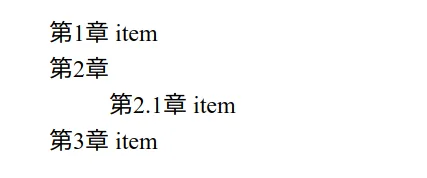
Counters are self-nesting: if a counter inside a descendant element or pseudo-element is reset, a new instance of the counter is automatically created. The scope of a counter starts from the first element in the document that has a “counter-reset + that counter”, and includes the element’s descendants and its following siblings and their descendants, but not any element that is inside the scope of a counter with the same name.
<style>
ol {
    counter-reset: section;
    list-style-type: none;
}
li:before {
    counter-increment: section;
    content: "第" counters(section, ".") "章";
}
</style>
<ol>
    <li>item</li>   <!--第1章-->
    <li>            <!--第2章-->
        <ol>
            <li>item</li> <!--第2.1章-->
        </ol>
    </li>
    <li>item</li>   <!--第3章-->
</ol>
The result is shown in the figure
Counters in Elements with display:none
An element whose display value is set to none does not cause a counter to be incremented or reset; pseudo-elements that cannot be generated do not cause a counter to be incremented or reset either. However, an element whose visibility is set to hidden does cause a counter to be incremented or reset.
Lists
An element with display: list-item generates a principal block box for the element’s content, and may additionally generate a marker box as a visual indication that the element is a list item.
The background property applies only to the principal box; the outside marker box is transparent. (However, if list-style-position is set to inside, then because the marker box’s background is transparent, the background set on the principal box will show through, so visually it is as if the background were applied to both the principal box and the marker box).
<style>
.transparent-border {
    border: 10px solid rgba(0, 0, 0, 0);
    color: white;
    background: blue;
}
</style>

<p class="transparent-border">将 border 的颜色设置为透明时,背景的颜色将透过来。</p>
Background properties are not inherited, but because the initial value of background-color is transparent, the background of the parent box will show through.
Also, when both the background-image property and the background-color property are set, the image will be rendered on top of the background color if it is available. This also means that in the transparent parts of the image, the background color is visible.
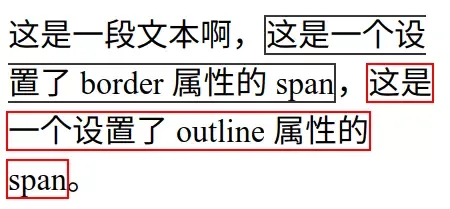
Outline (outline)
The differences between outline and border:
outlinedoes not take up space; showing or hiding it does not cause reflow or overflowoutlinemay be non-rectangular- The
outlineis the same on all sides; compared withborder, there are nooutline-toporoutline-leftproperties - If an element is split across multiple lines, then unlike
border, theoutlineis not broken at the start or end of a line box, but always tries to connect up as fully as possible (the effect is shown in the figure below) - Because
outlinedoes not affect formatting, it may overlap other elements on the page
outline-width accepts the same values as background-width (except hidden).
outline-style accepts the same values as background-style (except hidden).
outline-color accepts the same values as background-color. In addition, outline-color can also be set to invert, which inverts the pixels on the screen (but not all browsers support this).
Default Styles
When no font size is specified, headings are slightly bolder than the regular font; h4 has the same font size as the regular font, and h5 and h6 are slightly smaller than the regular font.
h1, h2, h3, h4, h5, h6 { font-weight: bolder; }
h1 { font-size: 2em; margin: .67em 0; }
h2 { font-size: 1.5 em; margin: .75em 0; }
h3 { font-size: 1.17em; margin: .83em 0; }
h4 { margin: 1.12em 0; }
h5 { font-size: .83em; margin:1.5em 0; }
h6 { font-size: .75em; margin: 1.67em 0; }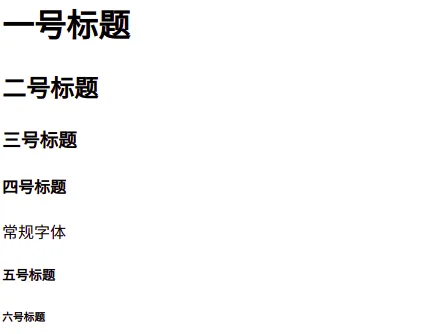
Comments
Sign in with GitHub to leave a comment. View discussions on GitHub ↗