A Glimpse of PWA
Introduction to PWA
PWA, short for Progressive Web Application, does not refer to any single specific technology; it can be seen as a collection of new technologies. At its core, a PWA is still a Web App that, with the help of new technologies, has acquired some of the characteristics of native apps.
Highlights
MDN lists the advantages of PWAs, which mainly address the current pain points of Web Apps. Below are a few points that best show what makes PWAs special.
Progressive
The technologies involved do not depend on each other and can be adopted independently. If a given technology is not supported on the client, it simply has no effect — nothing more. Adopting new features does not break the app’s backward compatibility.
The main considerations behind the progressive approach are:
- It lowers the cost of retrofitting a site
- Support for the new technology standards is still incomplete, and the standards are not yet finalized
Connectivity independent
With the help of the Service Worker, the app can work offline or on slow networks.
Installable
Allows users to add the app to the home screen.
Re-engageable
Message push is implemented through the Web Push API and desktop notifications through the Notifications API, drawing users back to the app from outside the browser.
PWA Checklist
The PWA Checklist provides a standard that PWA apps can be measured against. Besides reading the standard, you can also analyze a Web app with the Lighthouse tool to get suggestions for improving its PWA support.
Related core technologies
- Web App Manifest
- Service Worker
- Notifications API
- Push API
Example - Douban PWA
If you have read the PWA Checklist above, you may have noticed that many existing sites already have some PWA capabilities (such as HTTPS and being responsive). But as a programmer with at least some ambition, to me only a Web App that actually puts core technologies such as Service Workers and the App Manifest to use truly qualifies as a real PWA.
Measured against this standard, the main Chinese vendors currently using PWA technology are Douban Mobile, Weibo Mobile, Ele.me H5, and Alibaba (International) Mobile. The observant among you may notice that all of these are mobile properties. If we consider that PWAs came about to give Web Apps certain native app capabilities (such as offline usage and message push), and that these capabilities deliver greater value on mobile, it is perhaps not hard to understand why vendors adopted PWA technology on mobile first. (Of course, there are also sites like the Vue official website and Gmail that offer PWA technology on the desktop at the same time, since these technologies help the desktop too — the effect is just more visible on mobile.)
Outweb and Appscope are two websites that catalog PWA apps; you can look for PWAs there.
Below, let’s use Douban Mobile as an example to get a rough feel for the difference between a PWA and a traditional Web App.
First, let’s score it with the Lighthouse tool mentioned above.
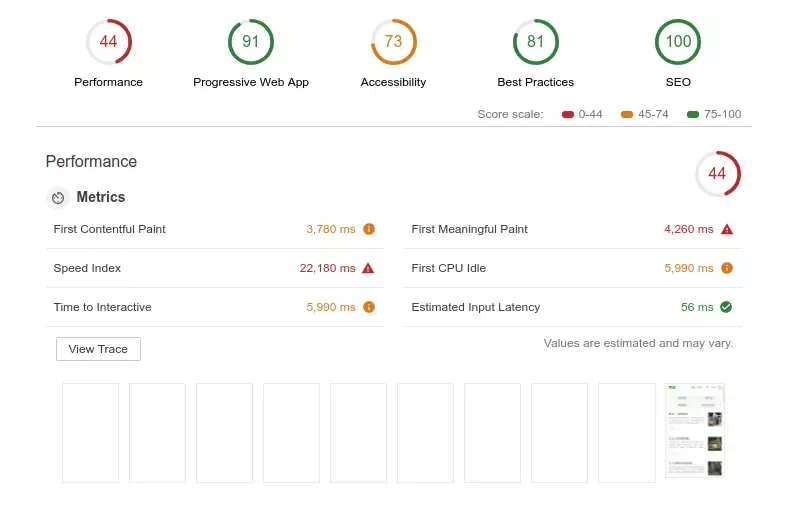
Well, the PWA category scored 91, which looks decent enough — but it’s not very intuitive, so let’s look at the app itself instead.
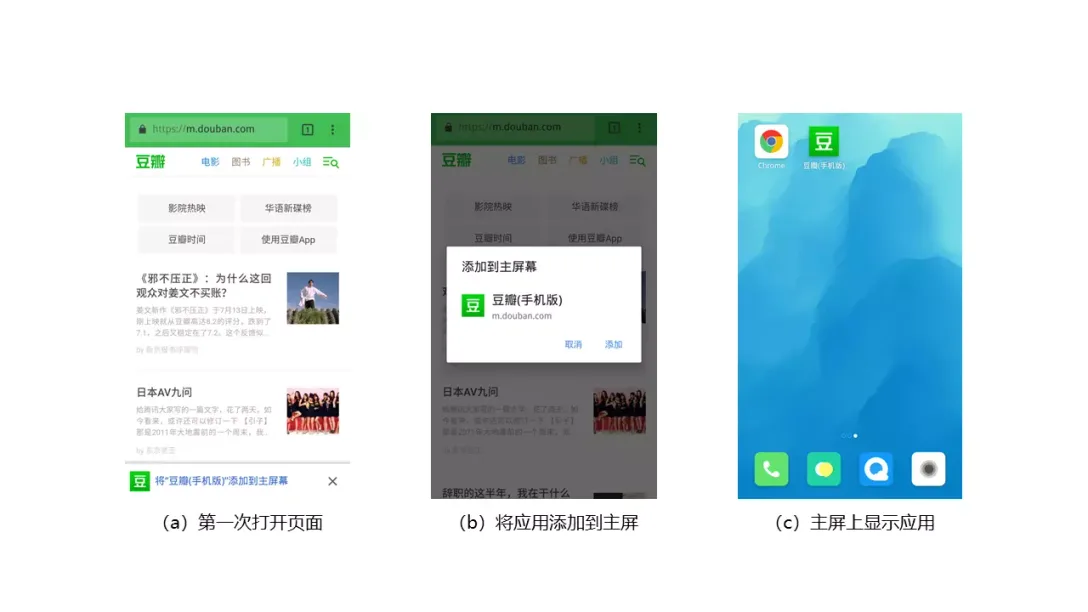
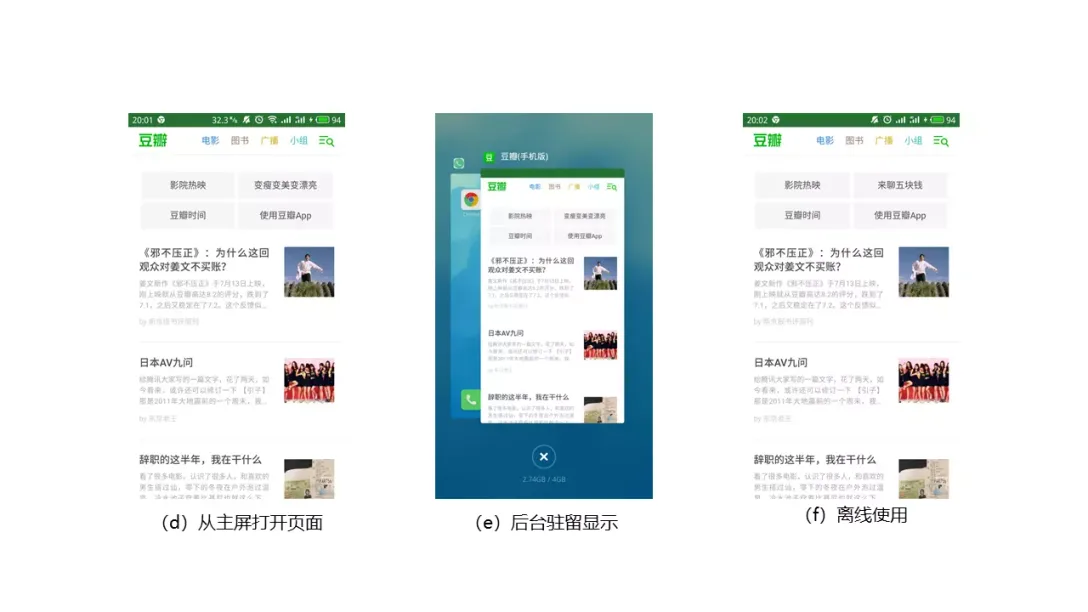
Figures (a) - (f) are screenshots of Douban Mobile taken with the Chrome browser on Android. Two technologies are mainly involved here: Manifest (a-e) and Service Worker (f).
The first time you enter the page, the browser prompts you to add the app to the home screen (a). After tapping Add (b), an icon for Douban Mobile appears on the phone’s home screen (c). Tapping the home screen icon to enter the page again, you see the app’s splash screen, and the browser’s address bar disappears as well (d). At this point, if you check the recent apps, you’ll find that the current page shows up in the system’s process list under the name “Douban (Mobile)” rather than “Chrome Browser” (e). Turn off mobile data and Wi-Fi, refresh the page, and you can still browse the content you viewed before (f).
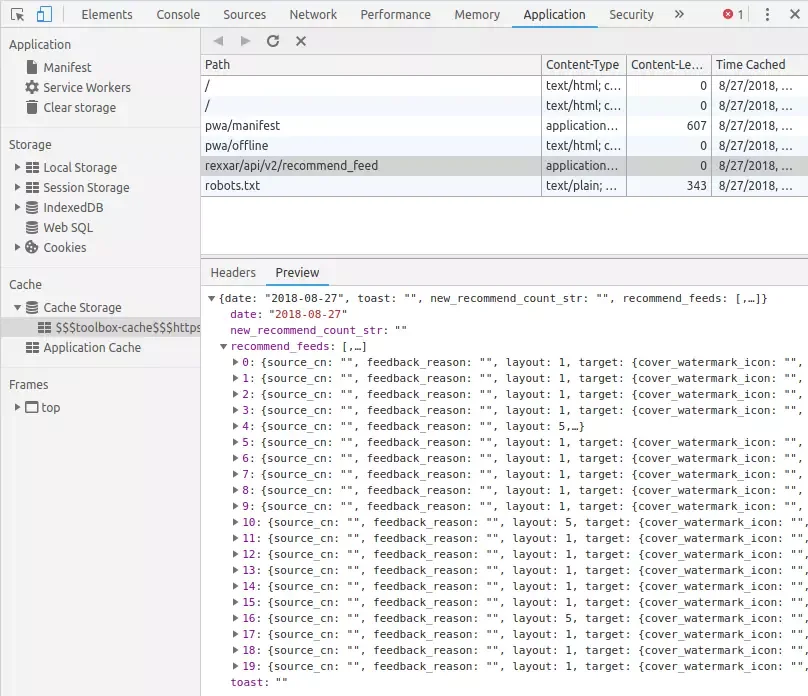
From the Chrome console on desktop, we can see that the homepage’s recommendation feed is stored in the cache as JSON. If we browse related articles, the related JSON files get stored in the cache as well. When we use the app offline, if a relevant cache entry is hit, its contents are taken out and used to render the page — this is also why we can see (f) in the offline state.
Service Worker
Predecessors
The Service Worker is related to two other technologies: Web Worker and Application Cache.
A browser’s JavaScript all runs on one main thread, and as the business logic grows ever more complex, performance problems keep surfacing. The W3C proposed the Web Worker API, handing time-consuming, resource-hungry tasks over to it; when the work is done, the worker tells the main thread via the post Message method, and the main thread receives the result through the onMessage method. But Web Workers are temporary: the operations performed each time cannot be persisted, so they cannot solve the time cost of repeat visits. On this basis, the Service Worker was proposed, adding persistent offline caching on top of the Web Worker.
Application Cache, on the other hand, was an application caching mechanism proposed in the early days of HTML5. That standard also tried to make apps usable offline. But because developers had no effective control over the cache, and due to flaws in its update logic, it has now been removed from the Web standards.
What can a Service Worker do?
- Intercept network requests
- Return cached content when a cache is available
- Manage cached content
- Push messages to the client
- Background data synchronization
- Resource prefetching
Characteristics
- Must work in an HTTPS environment
- An independent thread with its own worker context
- Automatically woken up when used, automatically put to sleep when idle
- Cannot touch the DOM directly
- Asynchronous by design, mostly implemented internally with Promises
Related dependencies
- HTTPS
- Promise
- Fetch API (fetching resources)
- Cache API (caching)
- Push API (message push)
Compatibility
As of this writing (2018-08-30), about 83.89% of browsers support Service Workers.
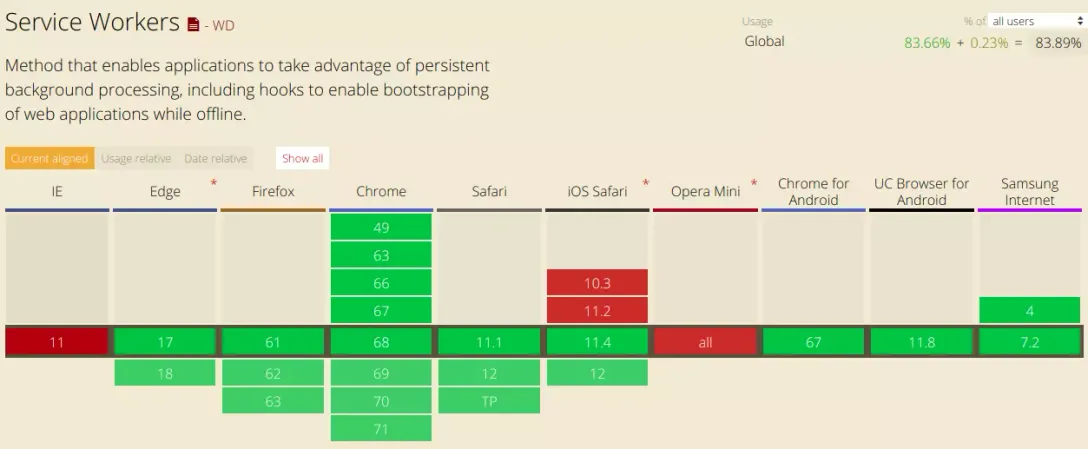
Lifecycle methods
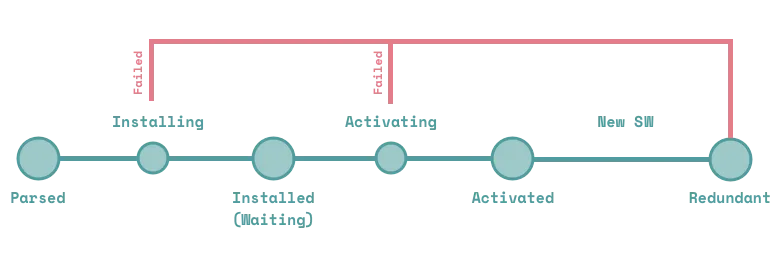
The Service Worker lifecycle can roughly be divided into four stages.
- Parse
- Install
- Activate
- Redundant
Parse
The Service Worker is an object attached to navigator. Before using it, you need to check whether it is available, and if it is, register the Service Worker. One thing to always remember is that Service Workers must work over HTTPS; otherwise registration will fail unconditionally.
if ('serviceWorker' in navigator) {
    navigator.serviceWorker
            .register('service-worker.js')
            .then(function() { console.log('Service Worker Registered');
    });
}
The register() method has an optional scope parameter that specifies which directory’s files the Service Worker controls (its scope); when omitted, it defaults to the directory the Service Worker file lives in.
.register('service-worker.js', {scope: '/'})After a successful registration, you can see it in the Chrome console under Application > Service Worker.
Install
const PRECACHE_URLS = ["../", "../styles/index.css", "../scripts/index.js"]

self.addEventListener("install", event => {
  event.waitUntil(
    caches
      .open('shell')
      .then(cache => cache.addAll(PRECACHE_URLS))
      .then(self.skipWaiting())
  )
})- self.skipWaiting() is used to skip the waiting state. This method mainly concerns the process of a new Service Worker being installed while the old one is retired — that is, updating the Service Worker. Normally, once the new Service Worker finishes installing it enters the waiting state, and only takes over after the old Service Worker stops working (usually when the browser is closed).
- Since the system may put the Service Worker to sleep at any time, you need to wrap things in event.waitUntil() to prevent execution from being cut off. It listens to the promises returned by asynchronous requests; if any of them is rejected, the Service Worker will fail to start.
To keep a failed download of some large or unstable file from breaking Service Worker startup, you can let only some of the files go through cache.addAll().
self.addEventListener('install', function(event) {
  event.waitUntil(
    caches.open('shell').then(function(cache) {
    // 不稳定文件或大文件加载
      cache.addAll(
        //...
      );
      // 稳定文件或小文件加载
      return cache.addAll(
        //
      );
    })
  );
});
Here, the first cache.addAll() will not be captured.
Activate
When the Service Worker is in the activated state, it can handle events such as request interception and cache matching. Before that, we can listen for the activate event and clean up old, obsolete cache files in its callback.
self.addEventListener("activate", event => {
  const currentCaches = [SHELL, RUNTIME];
  event.waitUntil(
    caches
      .keys()
      .then(cacheNames => {
        return cacheNames.filter(
          cacheName => !currentCaches.includes(cacheName)
        );
      })
      .then(cachesToDelete => {
        return Promise.all(
          cachesToDelete.map(cacheToDelete => {
            return caches.delete(cacheToDelete);
          })
        );
      })
      .then(() => self.clients.claim())
  );
});
What self.clients.claim() does is take control of the page without reloading it.
fetch
Next, let’s cover request interception and cache matching. The offline capability — one of the most attractive parts of PWA — is implemented by the operations in this part.
This part involves the two APIs mentioned above:
- Fetch API
- Cache API
Here is a simple example.
self.addEventListener('fetch', function(event) {
  event.respondWith(
    caches.match(event.request)
      .then(function(response) {
        if (response) {
          return response;
        }
        return fetch(event.request);
      }
    )
  );
});
First, we need to listen for the browser’s own fetch event; respondWith is used to answer the page’s request. Here the match method of the Catch API is used to check whether the cache holds an entry matching the request; if not, a remote request is made through the Fetch API.
If we cached the page and its related resources at install time, this step alone already enables offline access to the page.
This code can be improved: when a request misses the cache and goes to the network, we can add the fetched content to the cache, so these resources can be served directly on the next visit.
self.addEventListener("fetch", event => {
  if (event.request.url.startsWith(self.location.origin)) {
    event.respondWith(
      caches.open(RUNTIME).then(function(cache) {
        return cache.match(event.request).then(function(response) {
          var fetchPromise = fetch(event.request).then(function(networkResponse) {
            cache.put(event.request, networkResponse.clone());
            return networkResponse;
          })
          return response || fetchPromise;
        })
      })
    );
  }
});
Note that here the response needs to be handed to the browser for rendering and saved into the cache at the same time. Since caches.put consumes the file’s response stream, using it once renders the response inaccessible (think of it as a destructive read), so you need to make a copy beforehand with the clone method.
Let’s walk through the logic of the code above once more.
- Listen for the browser’s fetch event and intercept the original request,
- Check whether the resource about to be requested exists in the cache; if it does, return the cache, otherwise go to the next step,
- Fetch the resource remotely, cache it, then return it.
This is the classic “cache first” strategy. In fact, by permuting the order of the Fetch API and the Cache API, you can implement a variety of strategies after intercepting the browser’s fetch event.
- Cache first
- Network first
- Cache only
- Network only
- Fastest first
If you have questions about how these strategies are concretely implemented, see Service Worker Best Practices - Tencent Browsing Service; I won’t repeat the details here.
Redundant
Once the new Service Worker enters the activated state, the old Service Worker is retired — that is, the redundant state.
Service Worker updates
To update a Service Worker, you simply modify the corresponding JavaScript file directly. The browser detects the difference automatically and fetches it.
After the new Service Worker is downloaded and installed, it enters the waiting state. At this point two Service Workers coexist, and the old one still controls the page. Only when the old Service Worker stops working does the new one enter the activated state and take over the page.
Web App Manifest
Note that the Manifest here is completely different from the Manifest in App Cache; the latter has been removed from the Web standards and replaced by the Service Worker.
JSON ? meta?
The Web App Manifest (web application manifest) is, broadly speaking, a file that gathers page-related information and configuration in JSON form. This manifest format appeared long ago in browser extension development (perhaps the PWA Manifest borrowed the form from there, only with different properties).
The W3C mentions some considerations behind making the Manifest an external JSON file. To summarize, the main points are:
- Decoupling. No need to repeat meta tag declarations on every page, which makes maintenance easier.
- Cacheability. HTML may change often, which means user agents usually have to download the entire HTML file. Using an external Manifest file makes better use of the cache.
- More flexible to author. This point can really draw on the XML vs. JSON comparison. A tag-based structure suits UI, while a structure like JSON suits data. The Manifest is just some data about the application, and from that angle JSON is a better fit than meta tags.
Usage
Using the Manifest is very simple. First, reference it in the head.
<head>
    <link rel="manifest" href="/manifest.json" />
</head>
In the Manifest file, write the app’s information in JSON form.
{
  "name": "App name",
  "short_name": "App short name",
  "description": "Here is the description",
  "start_url": ".",
  "display": "standalone",
  "background_color": "#fff",
  "icons": [
      {
        "src": "images/homescreen.png",
        "sizes": "48x48 72x72 96x96 128x128 256x256",
        "type": "image/png"
      },
      {
        "src": "icon/logo.ico",
        "sizes": "96x96"
      }
  ]
}
Field descriptions
Below are a few commonly used fields.
name
The full name of the Web App, used as the text label of the app icon.
short_name
Provides a short, easy-to-read name for the Web App, for use when there isn’t enough room to display the app’s full name.
description
Descriptive information about the Web App.
start_url
Sets the URL loaded when the user launches the app from the home screen (if the user adds the app to the home screen from a detail page and start_url is empty, the page opened when launching the app from the home screen will be that detail page).
scope
Defines the navigation scope of the web application’s browsing context. If the user browses the application outside of this scope, it reverts to a normal web page.
display
Defines the app’s preferred display mode. It has four possible values; among sites using PWA today, standalone is the most commonly used.
- fullscreen: full-screen display with no status bar
- standalone: behaves like a standalone application with its own window and icon; the browser UI for controlling navigation is removed, though other UI elements (such as the status bar) may remain
- minimal-ui: behaves like a standalone application, but includes the browser address bar
- browser (default): opens as a traditional browser tab or new window
background_color
Lets the browser paint the Web App’s background color before the CSS has loaded.
icons
An array of image objects for the application icon under various environments.
Besides these, there are other properties; to see how they are used, refer to the MDN docs or the W3C docs.
Manifest updates
Once the user has added the app icon to the home screen, the icon can no longer be updated — unless the user removes it and adds it to the home screen again.
Additional issues to consider
Service Worker startup performance
In a discussion about Service Workers on the W3C’s GitHub, you can see that Service Worker startup currently takes roughly 200ms in Chrome. This means that if the loading time saved by using a Service Worker is less than 200ms, the page’s load time actually gets longer. But this problem is expected to improve in Chrome’s later version updates this year.
Cannot optimize “first load” speed
From the PWA flow you can see that PWA cannot thoroughly fix “first screen load” performance problems (such as a blank screen). From the moment a new user loads the page for the first time, or a user enters the page after clearing the browser cache, to actually using a given file’s cache, three network requests are needed. The first requests the script file the Service Worker lives in, the second requests the very file that needs to be cached, and only by the third request can the cache actually take effect. If you want users to have a smooth experience on the “first load” as well, PWA alone is not enough.
To speed up the “first load”, the first approach that comes to mind may be using SSR (Server Side Render, browser-side rendering) in place of CSR (Client Side Render, client-side rendering). Vue even has an official SSR guide describing how to use it. Here I’d like to share a talk by the Tencent Video front-end team — An Extremely Smooth Mobile Web App Solution — which compares the critical rendering paths of SSR and CSR and the related performance in detail. The figure below is taken from the talk’s slides; from it you can see that the main time SSR saves over CSR comes from JS generating the HTML and from fetching data to fill in the content.
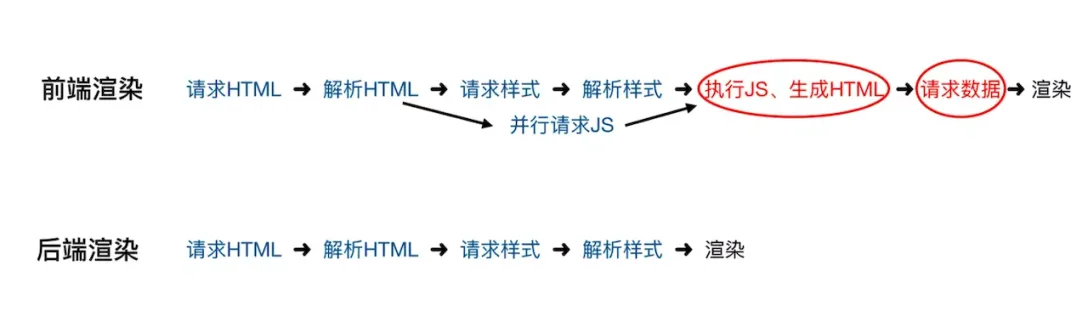
Worth mentioning: the point I personally found most interesting in the talk is that they used Web Socket instead of AJAX to request data, cutting down the time consumed by repeatedly creating connections.
CSR has corresponding optimization measures as well. For example, during the webpack build you can use prerender-spa-plugin to generate the page’s first screen at build time, which can also greatly reduce FCP (First Contentful Paint) time and optimize the first load.
The PWA ecosystem in China
Google has been fairly active in promoting PWA technology, and its PWA ecosystem is fairly complete. But for well-known reasons, Google’s services cannot be used normally in China. For example, for message push, Google provides the FCM service, but there is no equivalent replacement infrastructure in China, which makes this PWA feature rather hard to implement there.
On the other hand, discussion and experimentation around PWA technology is fairly active too. Perhaps thanks to its progressive philosophy, some of its features are already fairly widely deployed. Take Service Workers: open the browser console and you’ll find that household-name product sites like Taobao, QQ Music, and Baidu Netdisk are already using the technology to optimize page resource download time.
Differences between browsers
Limited by my time and devices, I only tested the browsers that ranked near the top in the July 2018 iResearch data and were available for download from app stores.
Notes:
- Test environment: Android 7.0.0
- Test site: Douban
- Test criteria: for Service Worker, only its offline capability (present or not) was tested. Since browsers behave inconsistently on the Manifest side, and Chrome covers the most Manifest feature points among them, Chrome was used as the baseline and evaluated on five aspects.
- In the “Add to home screen” column, “manual” means the browser offers an entry point for adding a web page to the home screen and the user adds it manually; “prompted” means that upon entering the page, the browser prompts the user to add the app to the home screen — confirming the add still takes a manual tap afterwards, but it spares the user the redundant steps of hunting for the entry point.
- “Address bar auto-hide” refers to the whole process after launching the app from the home screen: the browser decides whether to hide the address bar based on the Manifest configuration. Some browsers have other settings that trigger hiding the address bar, but those triggers are tied to user actions (such as swiping up or down) and do not keep the address bar hidden throughout.
| Browser name | Offline capability | Add to home screen | Home screen icon and name match config | Splash screen | Address bar auto-hide | Shows as an app in background |
|---|---|---|---|---|---|---|
| Chrome (68.0.3440.70) | Supported | Prompted + manual | Yes | Yes | Yes | Yes |
| QQ Browser (8.8.0.4420) | Not supported | Manual | No | No | No | No |
| UC Browser (12.1.0.990) | Supported | Manual | No | No | No | No |
| 360 Browser (8.2.0.128) | Supported | Prompted + manual | Yes | No | No | No |
| Baidu Browser (7.18.20.0) | Supported | Prompted + manual | Yes | No | Yes | Yes |
| Samsung Internet (7.2.10.33) | Supported | Manual | Yes | Yes | Yes | Yes |
| Sogou Browser (5.15.15) | Supported | Manual | No | No | No | No |
As the table above shows, the major Chinese browser vendors support Service Worker offline capability quite well — perhaps because these browsers are built on the Chromium engine. QQ Browser, which uses the X5 engine, behaves differently from Chromium-based ones. As for Manifest, its feature points may have more to do with the browser’s own implementation than with the engine, and the vendors vary quite a bit.
Summary
Although PWA is not the perfect final solution, and implementing all of its features in China is still difficult today, many of the technologies it brings together — such as fine-grained cache control and message push — have already filled gaps in the Web ecosystem. “The flaws don’t overshadow the merits” is perhaps the most accurate assessment. For me, the progressive philosophy alone is enough to make me believe in and look forward to a bright future for PWA and for Web Apps as a whole. Make Web App great again!
Related links
PWA directories
Some Chinese PWAs
Tools
- LightHouse
- Manifest validator
- Mobile-friendly test
- OneSignal message push delivery service
- Service Worker open-source framework — Workbox
Case studies
- A Pinterest Progressive Web App Performance Case Study
- Twitter Lite and High Performance React Progressive Web Apps at Scale
- More case studies
Comments
Sign in with GitHub to leave a comment. View discussions on GitHub ↗